
Redeeming a Steam gift is simple and can be done in just a few steps. Once you receive a Steam gift from another user, you’ll get a notification or an email with a special link to claim it. Follow the instructions below to add it to your Steam account.
Step 1: Sign in to Steam
Go to https://store.steampowered.com/login and sign in using your Steam account credentials. If you don’t already have an account, you can easily create one by selecting Join Steam and following the registration steps.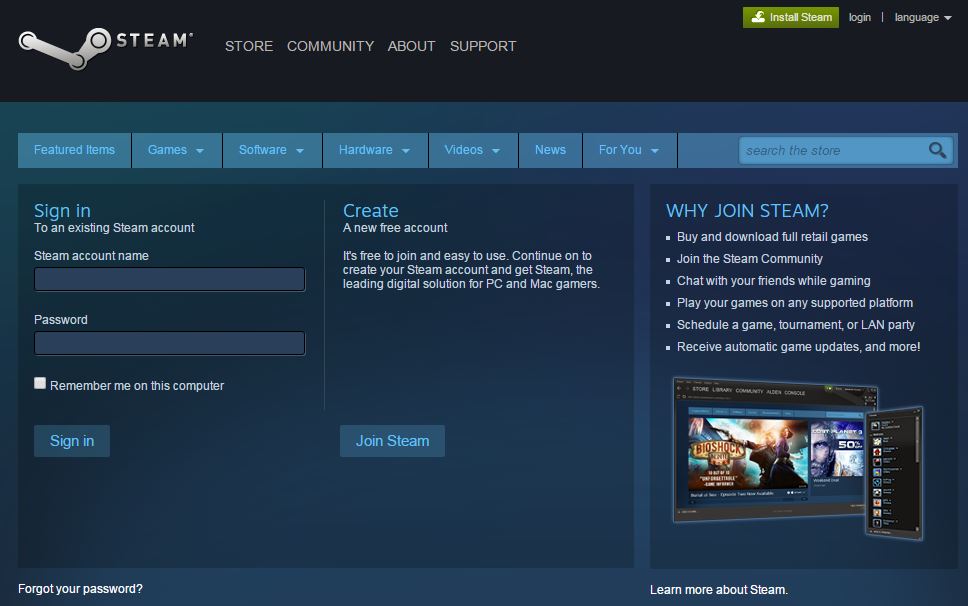
Step 2: Open the Gift Link
You’ll receive an email or Steam notification with a link to claim your gift.
Click the link — it will open a Steam page with two options:
• Accept gift
• Decline gift 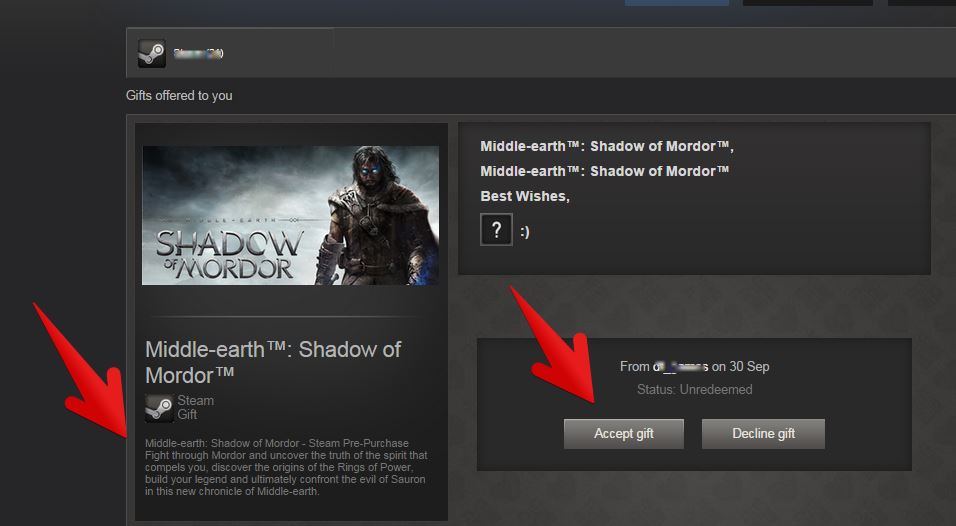
Step 3: Accept the Gift
Choose Accept gift to claim it. You’ll then have two choices:
- Add to my Game Library – This option adds the game directly to your Steam account, making it ready to download and play immediately.
- Add to my Steam Gift Inventory – This keeps the gift in your inventory so you can send it to someone else later or redeem it when you’re ready.
Step 4: Install Your Game
If you chose Add to my Game Library, the game will appear in your Library tab in the Steam app.
To install it:
- Open Steam.
- Go to your Library.
- Find the newly added game in the list.
- Click Install and wait for the download to complete. Once installed, you can launch and enjoy your game!
Additional Tips
• Make sure you’re logged into the correct Steam account before accepting a gift. Once accepted, the game cannot be transferred.
• Gifts are region-locked, meaning they might only work in certain countries. If you receive a gift from another region, verify that it’s compatible with your account before accepting.
• If the email link doesn’t work, you can access your pending gifts directly from Steam → Inventory → Gifts and Guest Passes.
By following these steps, you can quickly redeem and enjoy your Steam gift — whether it’s a new game, DLC, or other digital content.
Comments
0 comments
Article is closed for comments.